Using ChromaLens Mobile
The best way to learn ChromaLens for iOS or iPad is to try it out on your own. Capture live video or take an image with the app and move the sliders to see how the colors change. Try tapping the Randomize Button a few times to quickly see different enhancements, then change to a different Color Space and try moving the sliders or hitting Randomize again.
The following sections walk you through the main menus, buttons and settings in ChromaLens specifically on iPhone. Though the placement may be slightly different, all the same features and options will apply on iPad as well.
Top Bar
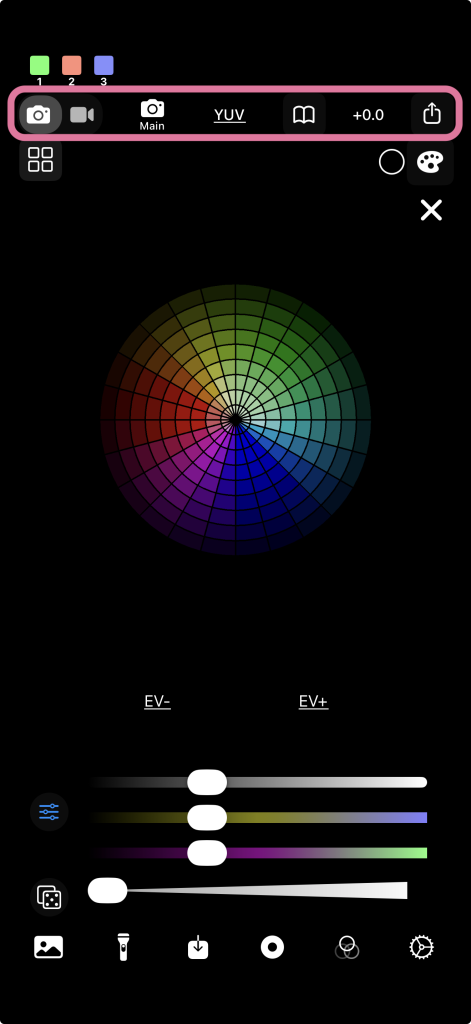
The Top Bar (shown at the left) includes the Mode Selector for switching between Image and Video Modes, the Camera Selector, and the Color Space Selector, which toggles between YUV, LAB and RGB color spaces. On the right of the Top Bar are the User Library menu button, EV Indicator and Share Button.
EV and Randomize Buttons
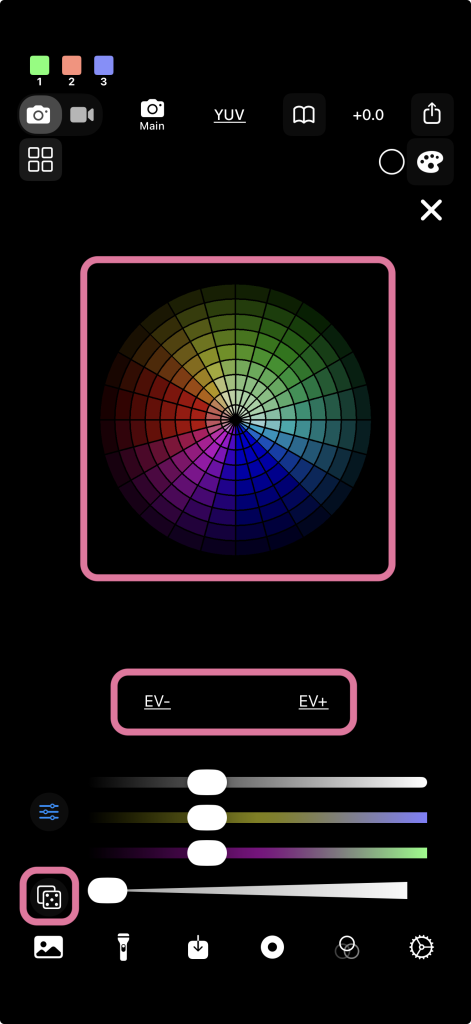
The center Preview View shows the processed output, while the EV Buttons below control exposure values before processing. (In Image Mode, a large Shutter Button also appears under the Preview View when no image has been loaded.)
The Randomize Button, with a dice icon, is a fast way to try out different slider positions in one tap. The Advanced Mode button directly above it allows for a simpler user interface, removing the PCA Indicators and EV controls.
Intensity Slider
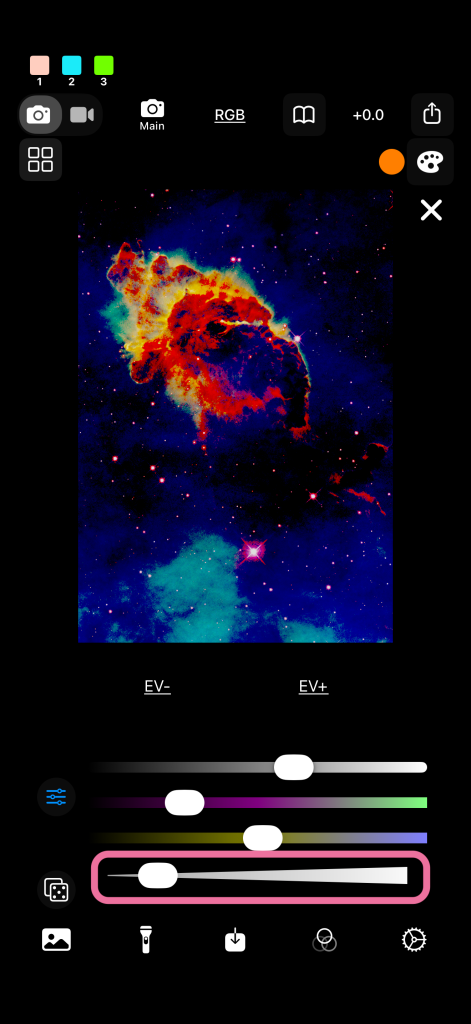
The Intensity Slider (shown on the left) sets the strength of the overall enhancement. When the knob is all the way to the left, the original pixels appears in their unprocessed state. When the knob is all the way to the right, the color enhancement is at its maximum. The Global Intensity slider under Settings controls this maximum value, allowing for even stronger Intensity effects or more fine-grained control.
Bottom Bar
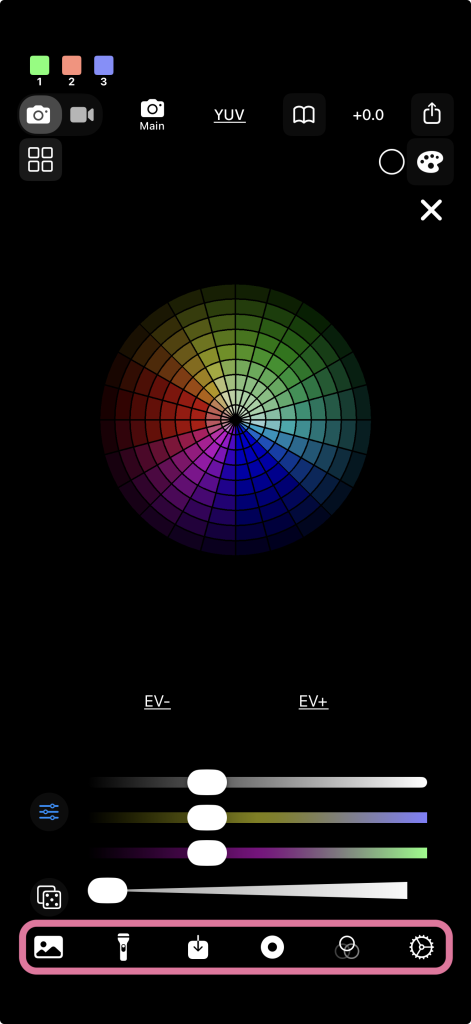
The Bottom Bar (shown at left) contains the Load Media Button, Flashlight Button, Save Button, and Record Button, followed by the Color Adjustments and Settings menus. See below for more information on the Color Adjustments and Settings menus.
Color Adjustments
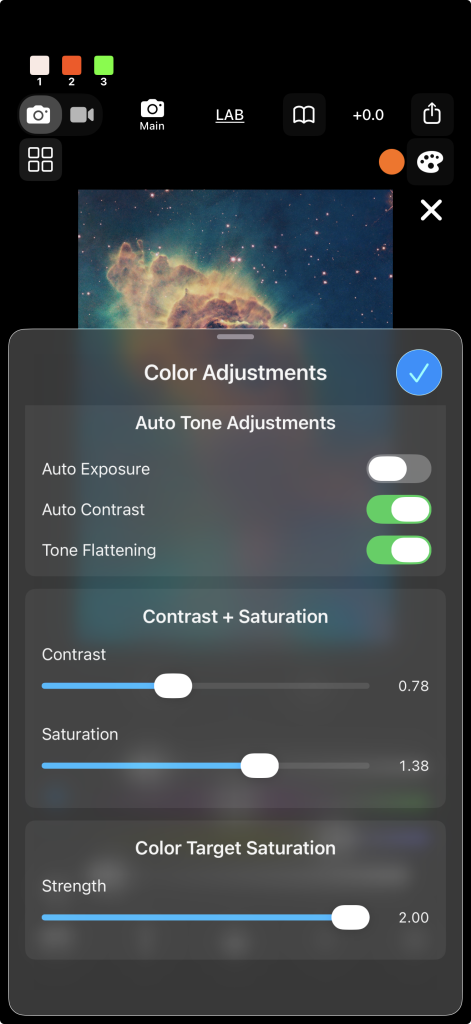
Decorrelation stretch often works best if the image is first adjusted to bring out the target color(s) as much as possible. The Color Adjustments menu provides a variety of pre-processing filters for this purpose, including the Color Target Saturation slider, which controls the strength of the saturation boost applied to the selected Color Tuning target.
Color Tuning
The Color Tuning feature applies a saturation boost to a specific targeted hue range, in many cases bringing out color variations even more effectively than Decorrelation Stretch alone.
Choose a Color Tuning target using the menu with a palette icon near the upper right corner, and see how the effect of the stretch changes (see example on the left).
Process Mode
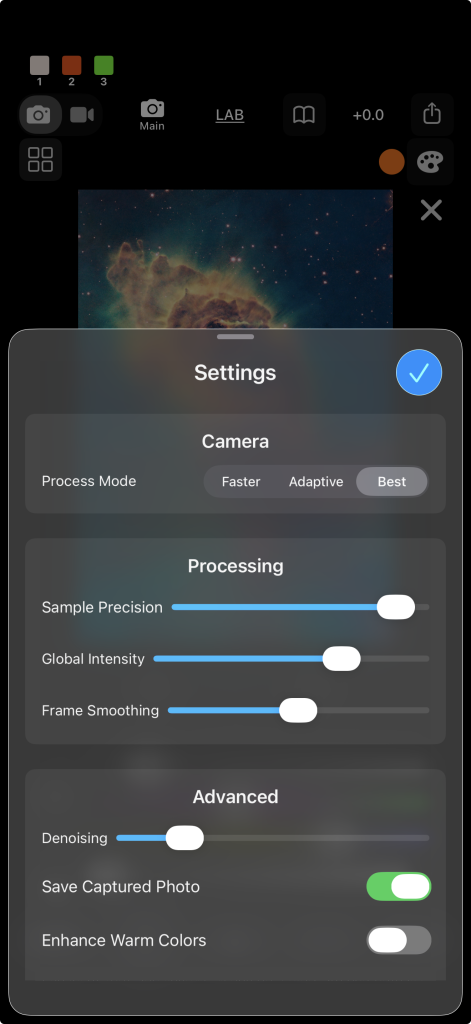
Process Mode, under the Settings Menu, is an optimization feature that selects between two different decorrelation stretch algorithms. Set to Best by default, it should usually remain at this setting. Only when the app is running consistently slow on an older device may users want to try the Faster or Adaptive settings. Faster reduces output quality but allows faster frame rates, while Adaptive uses low quality for videos and high quality for still images.
Presets
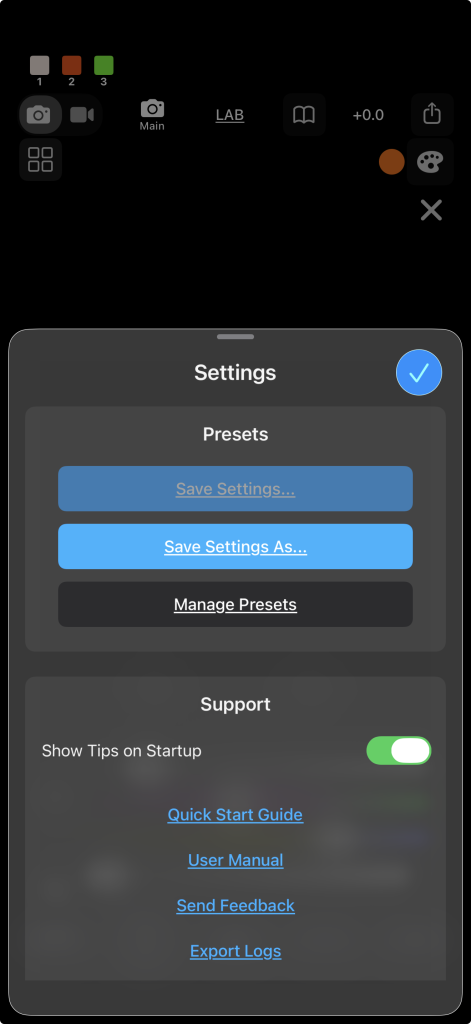
Also under the Settings menu, the Presets section lets users save and manage User Presets. This feature allows saving the slider positions and Color Adjustment settings, so they may later be quickly reapplied via the Preset Menu. Tap Save Settings As… to create a User Preset with the current settings. Save Settings… will overwrite an already loaded Preset. Use Manage Presets to view and delete them.
Thank you for checking out the ChromaLens educational materials. Visit again soon as we will be posting more tutorials and updates about new features.
If you have any further questions, please check the QuickStart Guide, refer to the User Manual, or reach out via the Contact page.